
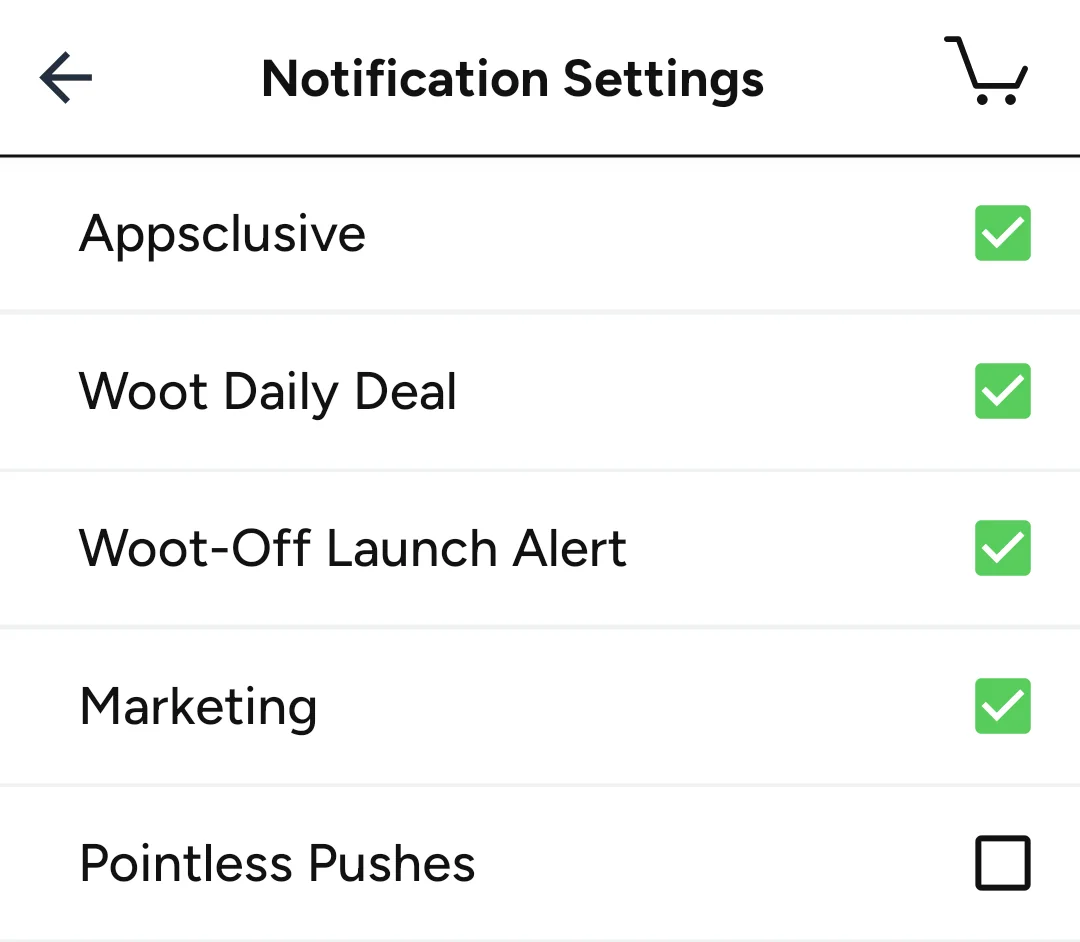
The Woot! app can send you a push notification when a Woot-Off starts, when the daily deal goes up, or when there's an app-only deal. Each one is a separate switch, under Account, then Notification Settings. Here's what each does, and which ones are worth turning on.
How to find the settings
- Open the Woot! app and tap Account in the bar at the bottom.
- Tap Notification Settings.
- Check the notifications you want and uncheck the ones you don't.
If the app doesn't send anything, make sure notifications for the Woot! app are also allowed in your phone's own settings.
Every setting, explained
Appsclusive
Deals you can only buy in the app. Woot! calls them "Appsclusive": the deal page on the website says so and points you to the app. Few deals are Appsclusive, and they move fast. On a Tuesday in October 2026, the only one listed was a $34.99 dash cam at 50% off. It went up at 5 p.m. Central, and its first buyer got in within a minute. This is the setting to turn on if you use the app at all.
Woot Daily Deal
The day's featured deal, the one at the top of Woot!'s home page. Woot! posts it at midnight Central, and it runs until midnight the next night or until it sells out. (See when Woot! posts new deals.)
Woot-Off Launch Alert
A heads-up when a Woot-Off starts. Woot-Offs are never announced ahead of time, so this is the easiest way to know one is on. (See what a Woot-Off is.)
Marketing
Woot! doesn't spell this one out. As the name suggests, it's for promotions, such as sales and coupon codes.
Pointless Pushes
Woot! introduced Pointless Pushes on April 1, 2020, with a post that wouldn't say what they were, only that you should sign up and find out. Judging by the name, they're for fun rather than deals. Turn them on if you like Woot!'s sense of humor.
All Woot-Off Items and All Shirt-Off Items
Further down the screen, these two send a notification for every new deal during a Woot-Off: on Woot! for the first, and on Shirt.Woot's own Woot-Off for the second. A Woot-Off can launch a new deal every 30 minutes or so for a whole day, so expect a lot of buzzing.
Which ones to turn on
- For the best deals, quietly: Appsclusive and Woot-Off Launch Alert. You'll hear about app-only deals and every Woot-Off, and not much else.
- For the daily lineup: add Woot Daily Deal.
- For the full Woot-Off experience: add All Woot-Off Items, and All Shirt-Off Items if you buy shirts.
What the app can't alert you about
Woot! has no alerts for a particular product, brand, or price, and no restock or waiting list. When a deal sells out, Woot! doesn't take backorders or notify you if it comes back.
The closest thing is a saved search. In BetterWoot Search, every search lives in the page's address, so you can bookmark, say, headphones 60% off or more, still in stock and check it whenever you like. (The app has no search of its own; see how to search all of Woot!)
Questions
How do I turn off Woot! notifications?
In the app, go to Account, then Notification Settings, and uncheck what you don't want. You can also turn off notifications for the Woot! app in your phone's settings, or delete the app.
Does Woot! send Bag of Crap notifications?
There's no Bag of Crap setting. They appear during Woot-Offs, so the Woot-Off settings are the way to catch them.
Are Appsclusive deals on the website too?
You can see them there, but you can only buy them in the app.